Fix Crawled Currently Not Indexed in WordPress: 2026 Complete Guide
By Joseph C. Lorenzo · Updated August 2026 · 12 min read
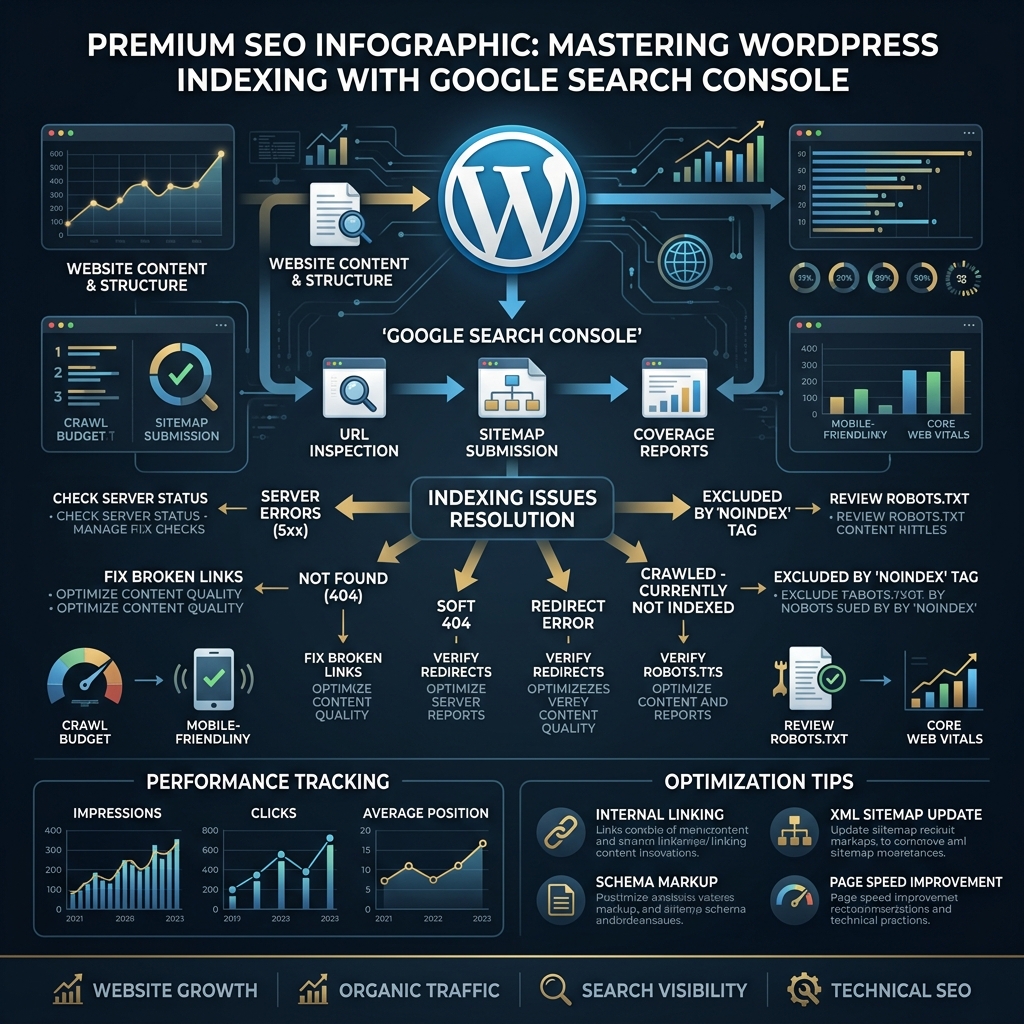
WordPress is the most common platform for "Crawled – currently not indexed" problems, and for a specific reason: WordPress generates an enormous volume of low-value pages by default that consume crawl budget and dilute your site's quality signals. A fresh WordPress install with standard settings can automatically create hundreds of attachment pages, tag archives, author pages, and feed URLs that Googlebot dutifully crawls — and decides not to index.
This guide covers every WordPress-specific cause of the "crawled not indexed" status, with plugin-level fix instructions, crawl budget optimization steps, and a prioritized action checklist.
Why WordPress Creates So Many Unindexable Pages
WordPress's content management architecture creates multiple URL permutations for each piece of content:
- Posts: The main post URL (example.com/post-slug/)
- Category archive: /category/seo/ — one page per category
- Tag archive: /tag/keyword/ — one page per tag (often dozens)
- Author archive: /author/username/ — one per author
- Date archives: /2026/, /2026/08/, /2026/08/06/ — three URL levels
- Attachment pages: /post-slug/image-filename/ — one per uploaded image
- Feed URLs: /feed/, /comments/feed/, /category/seo/feed/
- Paginated archives: /category/seo/page/2/ etc.
A WordPress site with 100 blog posts, 10 categories, 50 tags, 2 authors, and 200 images could have 500+ auto-generated low-value URLs. These consume crawl budget that could be allocated to your actual money pages, and their thin content drags down the overall quality assessment of your domain.
Fix 1: Disable Attachment Pages (Highest Priority)
WordPress creates a unique URL for every image uploaded to your media library. An attachment page at /my-post/photo-of-a-tree/ contains only the image and its auto-generated title — typically 20–30 words of content. Google crawls these, determines they're thin content, and places them in "crawled – not indexed."
Why this matters: If you've uploaded 500 images across 100 posts, you potentially have 500 thin attachment pages consuming crawl budget and lowering your domain's quality average.
Fix with Yoast SEO:
- Go to SEO → Search Appearance → Media
- Set "Redirect attachment URLs to the attachment itself" to ON
- This converts all attachment URLs to 301 redirects to the actual image file, eliminating the thin HTML page
Fix with RankMath:
- Go to RankMath → General Settings → Links
- Enable "Redirect Attachment Pages"
Manual fix (functions.php):
if (is_attachment()) {
wp_redirect(get_the_guid(), 301);
exit;
}
});
Fix 2: Noindex Tag and Author Archives
Unless your tag pages or author archive pages provide genuinely unique, valuable content (curated topic hubs, author-specific resource collections), they should be set to noindex, follow. This tells Google: don't index this page, but do follow links from it.
When to noindex tags: If your tags are used inconsistently (some posts tagged, most not), tags have fewer than 3–4 posts, or tag archives are thin list pages with no additional editorial content.
When to keep tags indexed: If you've built genuine topical hubs — tag pages with custom descriptions, curated ordering, and unique introductory content. These can rank for long-tail topic searches.
Fix with Yoast:
- SEO → Search Appearance → Taxonomies
- Set Tags → "Show Tags in search results?" to OFF (noindex)
- For author archives: SEO → Search Appearance → Archives → Author archives
Fix with RankMath:
- RankMath → Titles & Meta → Tags → Robots Meta → check "No Index"
Fix 3: Optimize Category Pages for Real Indexation Value
Category pages are worth indexing — if they're built properly. A category page that's just a list of post excerpts with no additional content is thin. A category page with a 200-word editorial introduction, a curated article order, and unique category-specific value is worth indexing and can rank for topical queries.
For each main category you want indexed:
- Add a category description of 150–300 words in Dashboard → Posts → Categories → Edit
- Configure your theme to display this description above the post list
- Use Yoast or RankMath to add a custom meta title and description for each category page
Subcategories and very small categories (fewer than 5 posts) should be set to noindex until they have enough content to justify inclusion.
Fix 4: Check for Caching Plugin Rendering Issues
Caching plugins like WP Rocket, W3 Total Cache, and LiteSpeed Cache serve pre-rendered HTML to all visitors — including Googlebot. If your cache is serving stale or broken HTML, Googlebot may be evaluating an outdated version of your pages rather than the current content.
Diagnose this issue:
- In GSC, use URL Inspection → "Test Live URL" → View Rendered Page
- Compare the rendered screenshot with what your browser shows
- If Googlebot sees different content than users, you have a rendering/cache issue
Common cache-related causes of "not indexed":
- Cache serves a 404 error page for a URL that actually exists (stale cache)
- Cache excludes critical content for Googlebot (user-agent-based cache variations)
- JavaScript-dependent content not pre-rendered by the cache
Fix: Clear your entire cache after making content changes. In WP Rocket: Dashboard → WP Rocket → Clear Cache. Verify the live URL renders correctly via GSC URL Inspection after clearing.
Fix 5: Identify and Eliminate Thin Content Pages
For your actual blog posts and pages that should be indexed but aren't, the most likely cause is thin content. Google's quality threshold has risen significantly with each core update through 2024–2026. Pages that were indexed in 2020 may no longer meet the current bar.
Thin content warning signs for WordPress pages:
- Fewer than 400 words of substantive body text
- Content that directly duplicates or barely paraphrases information readily available elsewhere
- No unique data, personal experience, case studies, or original analysis
- Missing or generic meta title and description
- No images, no structured formatting (just wall-of-text paragraphs)
For pages with thin content, you have two options:
- Improve: Rewrite the page with 500+ words of genuinely unique, helpful content. Add personal experience, step-by-step instructions, screenshots, or original data.
- Consolidate or noindex: If the page's topic is covered better elsewhere on your site, either 301 redirect it to the stronger page or set it to noindex.
Fix 6: Crawl Budget Audit
If Googlebot is spending its entire crawl budget on WordPress-generated bloat pages, it may not be reaching your actual money pages frequently enough. This is "crawl budget dilution" — a real problem for large WordPress sites.
Symptoms:
- Important new posts take weeks to appear in Google's index
- GSC Crawl Stats show a high proportion of crawls going to /tag/, /page/N/, /feed/ URLs
- Googlebot's last crawl date on important pages is weeks old
Fix via robots.txt: Block URL patterns that provide no indexation value from being crawled at all. For most WordPress sites:
Disallow: /wp-admin/
Disallow: /wp-includes/
Disallow: /xmlrpc.php
Disallow: /?s=
Disallow: /search/
# Block date archives if not needed
# Disallow: /2024/
# Disallow: /2025/
# Disallow: /2026/
Important: Don't block via robots.txt if you also need these pages noindexed — Googlebot won't crawl a blocked URL, so it can't see the noindex tag. Use noindex for pages you want Google to see-but-not-index. Use robots.txt Disallow for pages that should never be crawled at all.
Fix 7: Internal Linking Audit for Orphaned Pages
An orphaned page is a WordPress post or page that has no internal links pointing to it from other pages on the same domain. Google won't regularly crawl a page that isn't linked from anywhere — even if it's in your sitemap. Internal links are the primary mechanism by which Googlebot navigates your site.
Find orphaned pages:
- Use Screaming Frog SEO Spider (free up to 500 URLs) to crawl your site
- Export the "Inlinks" report and filter for pages with 0 or 1 inbound internal links
- These are your orphaned or near-orphaned pages
Fix orphaned pages by adding contextual internal links from your most-visited, most-authoritative existing posts. Use keyword-rich anchor text that describes the target page's topic. For WordPress, the "Related Posts" functionality (via Jetpack or manual) is a quick way to add systematic internal linking.
WordPress Plugin Checklist for Indexation Health
| Issue | Yoast Setting | RankMath Setting |
|---|---|---|
| Attachment pages | Search Appearance → Media → Redirect | General → Links → Redirect Attachment |
| Tag archives | Search Appearance → Taxonomies → Tags → Noindex | Titles & Meta → Tags → No Index |
| Author archives | Search Appearance → Archives → Author → Noindex | Titles & Meta → Authors → No Index |
| Date archives | Search Appearance → Archives → Date → Noindex | Titles & Meta → Date Archives → No Index |
| Search result pages | Auto noindexed by Yoast | Titles & Meta → Search Pages → No Index |
Priority Checklist: In Order of Impact
- ✅ Disable attachment page redirects (Yoast/RankMath) — immediate impact on crawl budget
- ✅ Noindex tag archives with fewer than 5 posts
- ✅ Noindex author archives (unless you have multiple expert authors with bio pages)
- ✅ Clear all caches and verify GSC renders pages correctly
- ✅ Fix orphaned pages by adding 2–3 internal links from high-traffic pages
- ✅ Improve thin content — minimum 500 words of unique, helpful text per page
- ✅ Submit improved pages for re-crawl via GSC URL Inspection or LinkRaptor
Force Re-Index After WordPress Cleanup
Once you've cleaned up WordPress's bloat pages and improved your target content, use LinkRaptor to submit the improved URLs through Google's indexing pipeline — rather than waiting weeks for Googlebot's next scheduled visit.